Data Security in Salesforce
Data security in salesforce is divided into 4 parts.
Organization Level Security :
- As we there is User → Org → Salesforce, Where user can access org user cannot direct interact with salesforce he can interact via org so we need to make sure that our org is secure.
Organization level security can be further classified into following parts :
User Management :
Who should be the user of our salesforce org? Obviously the employees (developer, tester, architect, etc) in our company and also our partners but they should have restrictions for the functionality that they should see only what they are intended to see. Also Executive who are working for company can be user in org.
Lets say we have institute org where all institute related stuff is happening so in this case the students in that institute could also be the user of our org but that depends the requirement if there is a feature where students are supposed to go on portal and see the marks then the students must be user of org for this there is some user license in salesforce.
What is license in salesforce?
A Salesforce license, is a metadata description of the Salesforce features and services that are available to your org. License definitions describe functionality for your org as a whole and for individual users in your org.
Note : While creating a user you need user license. Let's say you have got 10 user license then 10 user can be active / login.
There are types of license. Let's say if you select license type as salesforce then you can access anything and if you select force.com then only those functionality you can access. (In simple words Consider license as a event pass).
NOTE : As we know there can be only two active user on the developer edition. If you make an user (A) inactive the you can activate another user (B) but now lets say user (A) is trying to login then he won't be able to login as user is inactive at this time.
Freezing User & Deactivating User :
Freezing a User: Temporarily restricts access but does not free up the license associated with the user. The user account remains active in the backend, so the license stays assigned.
Deactivating a User: Fully disables access and frees up the license, allowing it to be reassigned to another user.
Freezing is ideal for temporary restrictions, while deactivation is for more permanent changes, especially when you need to manage licenses.
What is Profile in Salesforce?
Profiles in salesforce controls what access a user has in the org.
With the user you have become part of org but profile defines what kind of job you can perform let's say you select chatter free as license then you will get the profiles related to chatter free i.e Chatter free user etc If you select salesforce as license then you will get profiles related to salesforce that's how it goes.
Profile defines what job you are doing in org.
Every use need to have a profile there cannot be a user without profile because the profile determines what the user will be able to do and see.
For single profile you can have multiple user but a user can have only one profile. A single user cannot have multiple profiles
NOTE : In salesforce we cannot delete user record. It is not possible.
Password Policies :
You can set password policies for the user of org.
You can go in setup->password policies. In here you can set the policies i.e should it expire in 90 days or year, password should have numbers, max login attempt and so on policies.
Lets say if user has forget his password then he will reach out to admin right so you as a admin needs to reset the password.
To do so go in setup->user->click on particular user and then click on reset password button the user will get email for resetting his password.
Password Policies can be set in 2 ways :
Org Level (Which we did just now above)
Profile Level :
If you set password policy on profile level then it will be applied to all the user who are on this profile.
For setting password policy for profile go to profile of user -> click on edit profile -> under password policy you can set password.
Restricting access by location :
- In order to restrict access by location you should have Static IP address To enable this go to setup->under security->network access.
There are 2 ways to assign IP address restriction :
Org Level : If you set on org level and if you are not in specified ip range you will face login issue but you may be able to login.
Profile Level : If you set restriction on profile level then you will not be able to login at all if they are outside IP range. To set restriction on profile go to the profile->select the profile you want->find login IP range.
Restricting access by time on profile :
It is only Applicable on PROFILE.
To set it go to setup->profile->choose the profile->search login hours and you will be able to set time.
Profile Level Security (Object Level Security) :
- Object level security means on this particular object what kind of permission user will have will he be able to create, delete, edit, read data on this object.
Object Level Security is set in 2 ways:
Profiles
Permission Sets
Profiles :
Profiles are collections of settings and permission which defines what the user (basically the user who is on this profile) will be able to see and what that user will be able to do.
Every user need to have a profile there cannot be a user without profile because the profile determines what the user will be able to do and see.
With profile we can control object level access and also we can control field level security also Record Type. We can set tab access on profile (Default On, Default Off, Tab Hidden).
NOTE : For single profile you can have multiple user but a user can have only one profile. A single user cannot have multiple profiles.
Profiles are of 2 Types :
a). Standard Profile :
We cannot change settings and permission on standard profile.
Some of the standard profile which are there :
Standard user (here user means profile only) :
- It has got permission on most of standard object for CRUD Salesforce has given us a template if you want to create a user and as of now you don't want to create a custom profile then you can assign this profile to the user.
Read-only Profile :
- If you want a user in org to have all the access like of standard user but the access should be restricted to read only then you can assign this read-only profile.
Solutions manager :
Typically, these individuals are product experts with excellent written communication skills and advanced knowledge in a particular area of your product. lets say your setup-box is not working and for that you have called customer support you told him the issue and you are expecting a proper answer from him so that your issue is resolved for that purpose the customer support should have pre-defined solutions for the problems which can occur so that he can see those solutions and answer his customer. But who will add those solutions who can update or delete solutions? The solutions manager can do this.
The solutions manager has got the permission of standard user + some extra permission.
System administrator :
Get’s all access org.
If View all data, modify all data if these two are enabled then that user is equivalent to the admin. There can be multiple system administrator.
b). Custom Profile :
- Salesforce does’nt allow you to edit standard profile and it's permission so we can create our own custom profile.
Why we cannot edit standard profile?
- Salesforce has given the standard profile as template and whenever we create a new custom profile we clone it from standard profile and then edit our profile accordingly.
You can create profile from setup->profile->new profile.
You can edit custom app settings visibility. You can also edit tab visibility. Lets say once the tab is created and you want to change visibility for the tab then you can do it from here.
For permission of custom object CRUD related things search "Custom object permissions" in profile. You can edit from there.
Permission Sets :
Permissions sets are also collections of settings and permissions which allows us to give additional access to user which they have got from the profile.
You are a user and you are on profile whatever access you have got is got but if I want to give additional access I can create a permission set and assign it to you so that you will have additional access.
You can control object level security, field level, tabs , apex class access, Record-Type settings, etc and all the other stuff expect password policies, login hour, login by IP.
Permission sets can be assigned to Users in Salesforce.
Let's consider a scenario there is Associate faculty (A, B, C) and Registration Desk handled by (D, C) now registration desk handles all the stuff related to registration but one fine day associate faculty B also want's to help for registration desk in his mean time but he don't have the permission/access to do so? Here we have to either change the profile of user B to the profile of associate faculty but by changing profile he won't be able to do the work of associate faculty. So as a admin what would you do?
Answer : One possible answer is you could create a another profile with associate faculty + registration desk. But this will increase overhead. Instead you can use permission set for registration desk and assign it to B.
NOTE : A single user can have multiple permission set and single permission can be assigned to multiple user (There is many to many relationship in user and permission set)
As we know if a many to many relationship exists there will be a junction Object so here junction object is -> PermissionSetAssignment.
How to create Permission set ?
For creating permission set go permission set in setup enter permission set info. You can select the license if you want let's say you select salesforce as a license then this permission set can only be assign to the user who are on this salesforce.
Now you can add permissions go to object settings after creating permission set.
After going to object setting -> select you object->edit now search object permission and edit (CRUD related things).
Now assign the permission to the user by clicking on Manage assignment from there you can assign the permission to user.
NOTE VIMP : Profile are base and permission set are additional permission on top of it. So let's say if you have a create , read , delete permission on a profile and you created a permission set which has only edit permission so that does not means that profile will only have edit access it will have its own access which were set (create, read, delete) as profile are base and permission set cannot restrict the profile to do so they can only add additional permissions.
Field Level Security :
Field level security has to be applied by checking read checkbox and edit checkbox. You can control visibility, edit access and all those stuff using these 2 checkbox.
There are 2 levels in which we control field level security :
Profiles
Permission Sets
For setting Field Level Security :
- Setup → Go to profile → choose your profile → find “Custom Field Level” security → choose the object and set access.
You can also set field level security from Permission sets.
One way of setting field security is going into “Field Accessibility” from there you set it for any profile.
Record Level Security
If you want user to edit specific/certain record of that particular object or let's say you want user to read certain records of that object then Record Level Security comes into picture.
Record level security is only necessary if you want to narrow down the results which the user will be able to see or edit only in that case you use Record Level Security.
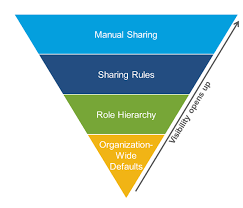
Visibility/Access Increases as we go Up.
Record Level Security is Further Divided into 4 parts or you implement record level security with this 4 methods :
OWD
Role Hierarchy
Sharing Rules
Manual Sharing
a). OWD (Organization wide Default)
It determines “baseline level'“ of access for all the user in our org for that particular object.
Object level and Record level security goes hand in hand. Let’s say there is object level and record level security whenever you have to identify final access a particular user will have, you take both of them into consideration and the most restrictive security applies. Consider Record level has private and Object level has Read access then here private will be applied because this is most restrictive.
If you want to restrict the access based on some condition for ex: teacher faculty can update the records of student of their own subject then for this first we will restrict all the access and then allow some of the access to teacher faculty.
OWD settings apply to all users in the Salesforce organization. It sets the baseline level of access for all users to records of a specific object.
NOTE : Owner of record will always be able to access the record irrespective of whatever security is applied.
Organization-Wide defaults can be set to any of the 3 below:
NOTE : By Default OWD is set to Public Read/Write.
Public Read/Write: All users can view, edit, and report on.
Public Read/Only : All users can view and report on records but not edit them. Only the owner, and users above that role in the hierarchy, can edit or view those records.
Private: Only the Record Owner, and users above that role in the hierarchy, can view, edit, and report on those records.
In order to set OWD for a object before that lets understand how to determine what will be the OWD for this particular object. There is a flow chart salesforce has provided for admin to determine what permission you are going to give depending on the situation.
Question 1 : Who is the most restricted user for this object ? based on that answer another question 2.
Question 2 : Is there ever going to be an instance (record) of this object, that this user should'nt be allowed to see/read If YES then sharing model would be private. Else move to third question
Question 3 : Is there Ever going to be an instance (record) of this object, that this user should'nt be allowed to edit. If YES sharing model would be PUBLIC/READ ONLY, If NO then PUBLIC READ/WRITE.
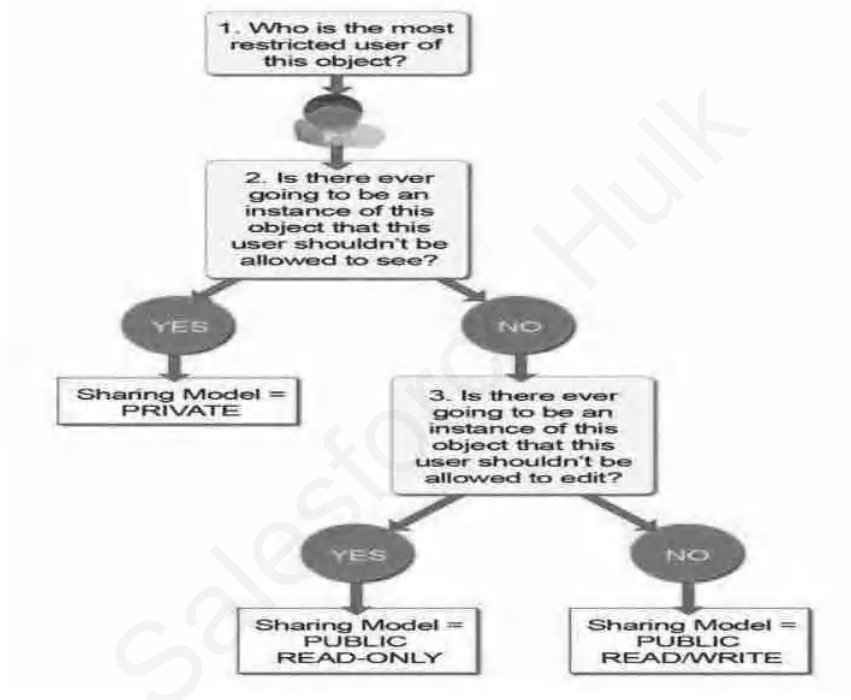
In OWD we set the baseline level of access which determines access for each and every user in our org WHY BASE LINE IS DETERMINE BY MOST RESTRICTED USER ?
Answer : Most restricted user is the one who has least access and we are setting that least access for all of the user.
How to set OWD for object ?
- For setting OWD for particular object go to Setup → “Sharing settings” and you can set it from there.
If OWD of Student object is set to private and a profile has edit and read access then can user on profile edit or read all the object?
→ If the record is not owned by or shared with the user, they will not be able to access it despite the profile permissions, due to the private OWD setting. But they can edit and see the record which they own
b). Role Hierarchy
In Role Hierarchy the one who is above in the hierarchy will always be able to access the the record of one who are below in the hierarchy. Example : CEO should be able to access the record of all VPs and so on.
For manager to have access of his/her subordinate we create role hierarchy
So first we hide all the records with OWD and then give additional access with help of Role hierarchy. Whenever you want the access of your record to be shared automatically based on this hierarchy you are going to implement the role hierarchy.
Role Hierarchy is not object specific.
How to create Roles ?
Go to setup → roles you can create roles from here.
To assign roles go to users → edit → select role.
If you want that Role hierarchy should'nt be applied on a object then go to “sharing-settings” from here under Grant access using hierarchy uncheck which ever object you don't want to include in role hierarchy then role hierarchy will be disabled on that object. Note : we cannot uncheck it for standard object.
NOTE : Remember we studied the in master-detail relationship the child object inherits the settings of parent so this is it.
Roles and OWD IMP Notes:
In role hierarchy if there is user A and user B and if user A is smaller in role and OWD is set to private then user B can see user A record right ? and can User B edit user A record?
→ By default, users higher in the Role Hierarchy can view and edit the records owned by users below them. If User B's profile does not have edit access to a specific object, then User B will not be able to edit User A's records, even if User B is higher in the role hierarchy.
What if OWD is public read/write can User B (Higher in Hierarchy) edit record if there is no edit access in his profile?
→ Even though the OWD allows records to be publicly editable, User B will still not be able to edit any records (including those of User A) if their profile does not grant edit access to that object.
C). Sharing Rules
Sharing rules are used to extend sharing access to users in public groups, roles, or territories.
Sharing rules give particular users greater access by making automatic exceptions to your org-wide sharing settings.
They should be applied to the objects whose org-wide defaults are set to Public Read-only or Private because sharing rules can only extend the access they cannot restrict the access provided by Organization-wide defaults.
NOTE : Sharing settings cannot be applied on Child object in MDR relationship.
What is Public Group ?
Public group are used to group different user irrespective of their profile or their roles.
In public group we can Add users, roles, roles & subordinate, another public groups.
Let’s say there is training manager role then it means that all the user in training manager role and all the user who are below training manager role are consider into roles and subordinate.
As an admin ask these question before Creating sharing Rules :
Which records to share? Answer : The student record which are registered in salesforce admin course.
With whom you wanna share that? Answer : The student record which are registered in salesforce admin course.
What access level ? Answer : Read/Write.
There are 2 Types of Sharing Rules :
Criteria Based
Owner Based
Criteria Based :
If the record falls in particular criteria it should be shared if the record does not fall in particular criteria it should not be shared simple as that.
Example : If registered student == Salesforce admin this could be a example for criteria.
Owner Based :
Owner based shares the records owned by certain users. Owners can be identified through public groups, roles and roles and sub-ordinates.
Lets say “Role A” has different parent in Role hierarchy and “Role B” has different parent in role hierarchy and you want to share the records of user who are on “Role A” with the users who are on “Role B”. This is what owner based sharing rule means.
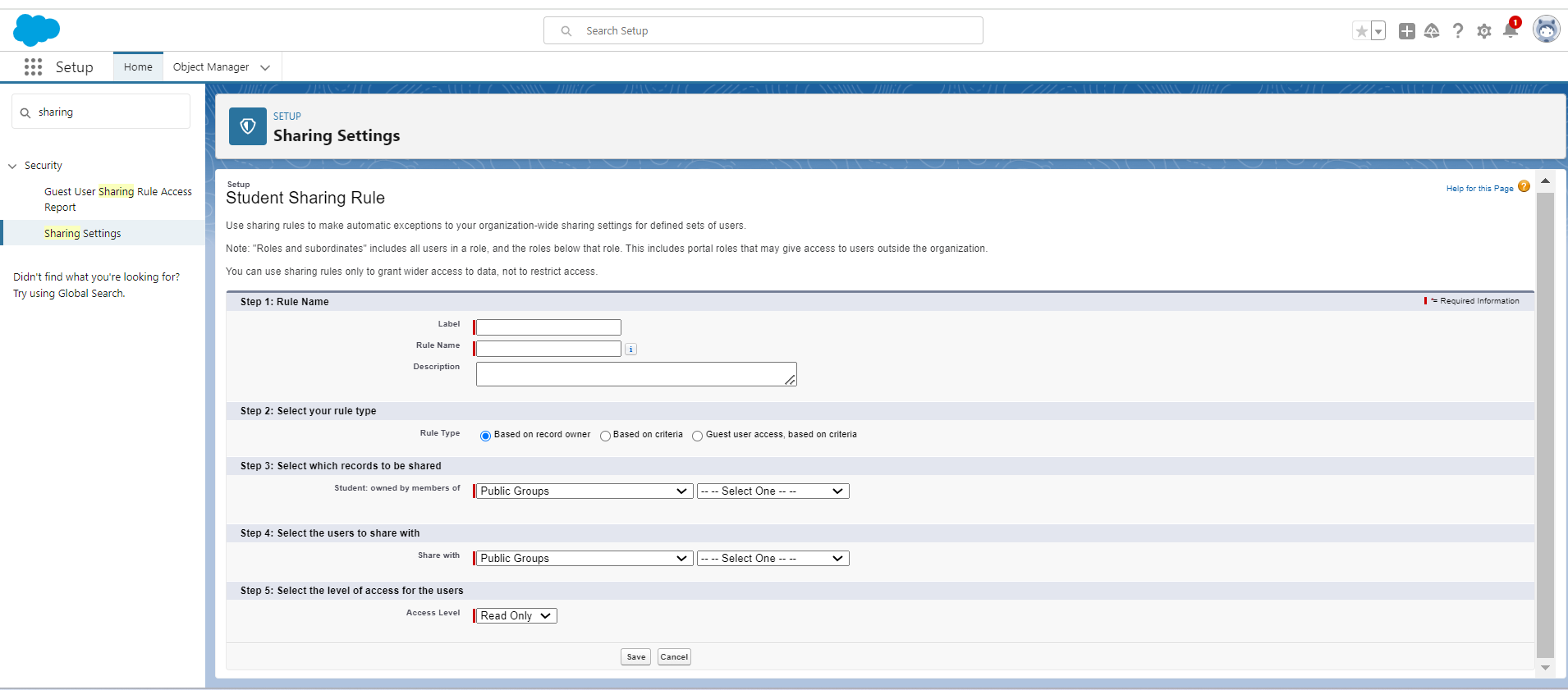
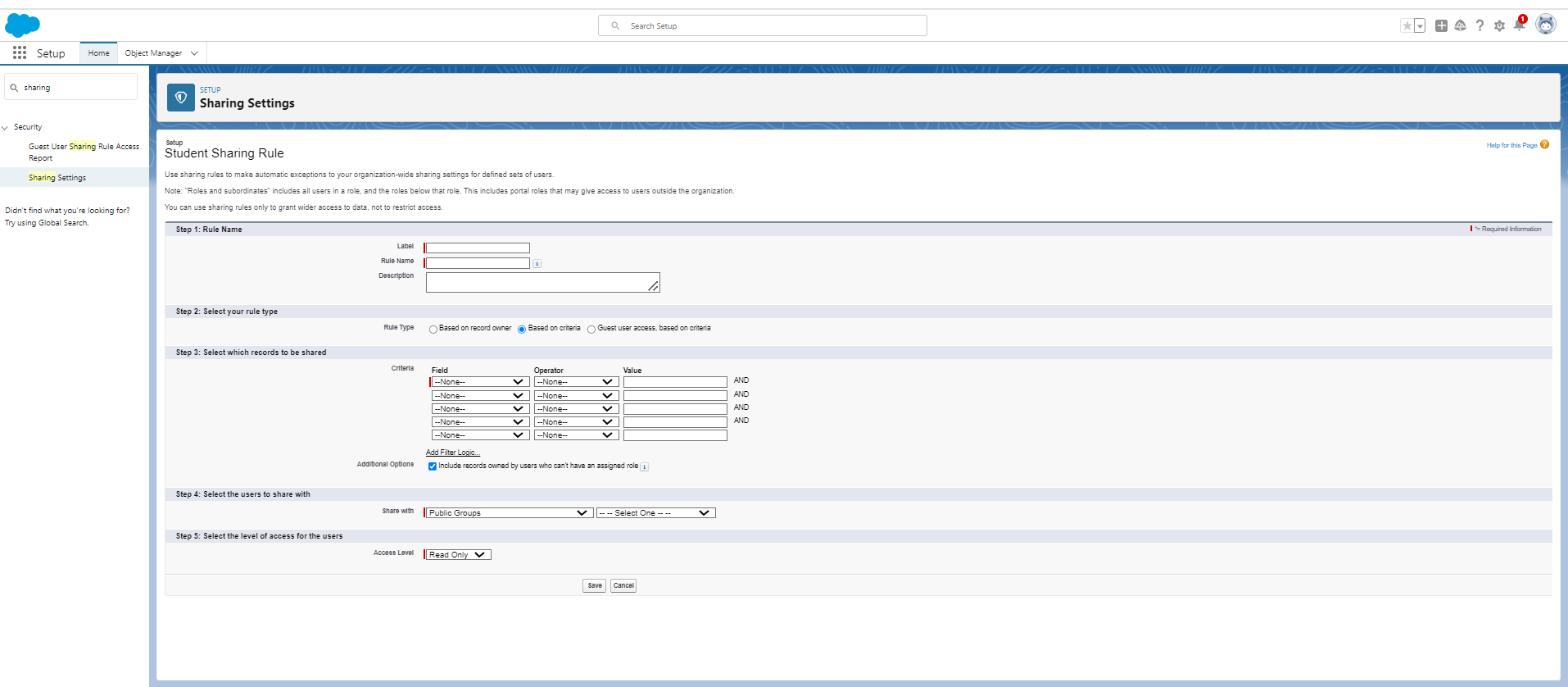
How to create Sharing Rules ?
Consider we have requirement of creating a sharing rules for Student object where student who has opted java course will be there.
To create sharing rules with criteria based navigate to
setup → sharing settings → search sharing rules and add new rule.
Choose “Criteria Based” (as per our requirement) in that choose course opted field and value as java.
Then select user to share with here select it as Public group and select Salesforce Team Public group which we created earlier. Basically all of them on this public group will be there on this sharing rule criteria.
Then Select the level of access.
VIMP NOTE : You cannot directly add sharing rule on user you need to either go with public group, roles or roles and subordinate.
VIMP NOTE : We cannot delete record after sharing it even tough you have delete access on that profile.
NOTE : You cannot restrict the access provided by OWD with the help of sharing rules. While sharing rules can extend the access beyond these settings. That means if you are creating sharing rules you are providing additional access which is not there by OWD or role hierarchy.
Refer below Images.
IMP Notes :
In sharing rules lets say we are sharing a record and there is master detail relationship then all the child will be shared or not?
→ In a master-detail relationship, when you share a parent record through a sharing rule, all child records will automatically be shared along with it.
What if there is Lookup relationship?
→ In LookUp relationships, sharing is not automatically passed down from parent to child, unlike in master-detail relationships.
If you share a parent record via a sharing rule, the access does not automatically extend to the related child records.
Each object in a lookup relationship has its own independent sharing settings, so child records will retain their own visibility and access controls unless explicitly shared.
d). Manual Sharing
Manual sharing extends the record accessibility to various entities, including public groups, roles, roles & subordinates, and individual users.
It's also important to note that manual sharing in Salesforce is designed to extend access, not to restrict it.
For example : I want only 2 records to share with a user, of Students Object who has opted java as course.
While sharing records you can share records with public groups, user, roles, role and subordinates.
To share record with a particular user you can go on that record in dropdown click on sharing and select user or public group you want to share it with also select access level that is Read Only or Read/Write.
NOTE : When Parent/Master record is shared then it’s child record are also shared automatically